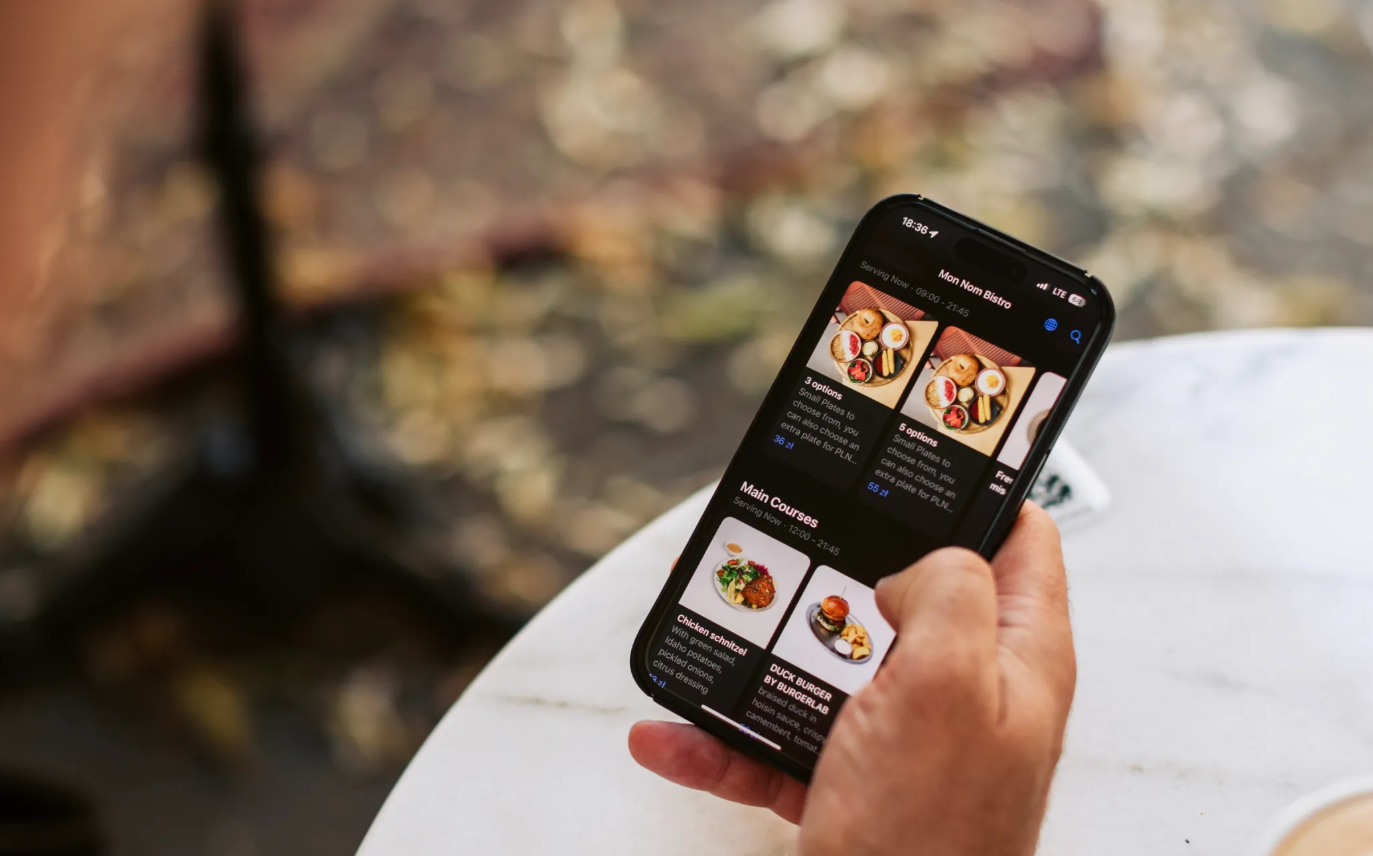

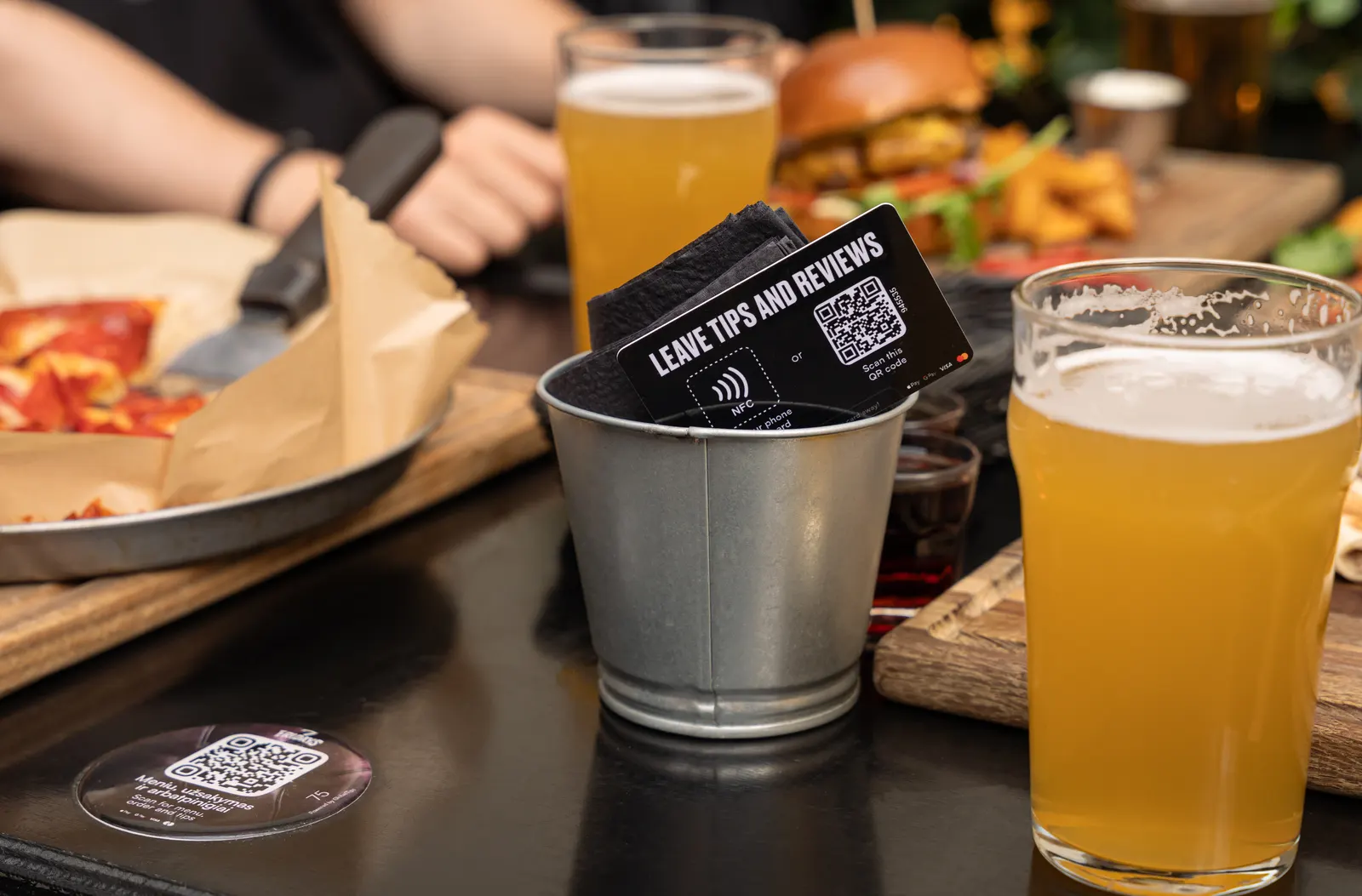
A QR code alone does not increase revenue. A useful interactive QR menu has to make the guest journey easier: clear categories, accurate information, sensible modifiers and a mobile experience that works quickly.
When ordering is enabled, the menu can also make relevant add-ons easier to select and reduce the number of steps between deciding and ordering.
Step 1: define the goal before choosing features
Decide what problem the menu should solve: printing and updates, language support, ordering queues, repeat orders, checkout, or a combination of these.
Choose a small set of metrics that match the goal, such as order value, modifier uptake, time to first order, repeat-order activity or staff questions about the menu. Available reporting depends on the product and setup, so confirm what can actually be measured.
Step 2: build for mobile scanning
- use clear category names
- keep item descriptions concise
- show allergens and dietary information consistently
- structure modifiers the same way staff and the kitchen understand them
- use strong images only where they improve decision-making
- support the languages that matter to the venue
Step 3: make add-ons helpful
Relevant modifiers and add-ons can support higher order value, but aggressive pop-ups can create friction. Keep suggestions closely related to the item and always make the primary choice obvious.
Examples include an extra topping, a side, a drink size or another modifier already available in the venue's menu logic.
Step 4: decide how far the guest journey goes
A venue may use the QR menu for browsing only, add ordering, or connect ordering with payment. The right scope depends on the service model.
Do not add ordering simply because it is available. Add it where guests currently wait or where repeat ordering creates unnecessary staff work.
Step 5: confirm integration requirements
If the venue needs orders, bills or payment status to move automatically between systems, confirm POS integration before rollout. Integration is available for supported systems, but the exact scope varies.
Standalone workflows can be appropriate where deep POS automation is not required.
Step 6: protect guest trust
Keep prices, fees, allergens and required information clear. Collect only the personal data the flow actually needs and provide a straightforward fallback for guests who prefer staff assistance.
Step 7: pilot and iterate
- test the menu on several phone sizes
- pilot a limited number of tables or one service period
- collect staff feedback on guest confusion
- adjust categories, modifiers and instructions
- expand only after the basic flow works reliably
Why GlobalTips works for an interactive QR menu
Turn your menu into a stronger sales and service tool with GlobalTips. Show photos, modifiers, allergens, and 140+ languages, then add ordering, payments, tipping, reviews, and loyalty as your venue needs them.
Start with a menu guests can use easily and staff can keep current. Book a demo to plan your rollout.